

Anticipating and Exceeding Expectations Throughout
The Claremont Colleges Community
About The Claremont Colleges Services
Established in 1925, The Claremont Colleges Services (TCCS) is the central coordinating and support organization for a highly regarded cluster of seven independent colleges known as The Claremont Colleges. With approximately 300 employees who provide expertise in a broad range of roles, TCCS serves 8,500 students and 3,200 faculty and staff at five undergraduate colleges and two graduate institutions.
TCCS provides both student facing services as well as administrative and operational services to the students and institutions that comprise The Claremont Colleges. See the TCCS Brochure for more information. Our Student Services, Campus Safety, and The Claremont Colleges Library provide services directly to the students of The Claremont Colleges. Additionally, TCCS has numerous departments that provide services to and coordination consortial projects and programs throughout The Claremont Colleges.
We invite you to watch this Introduction to Student Services video to learn more about our enriching programs offered by Student Services.

About The Claremont Colleges
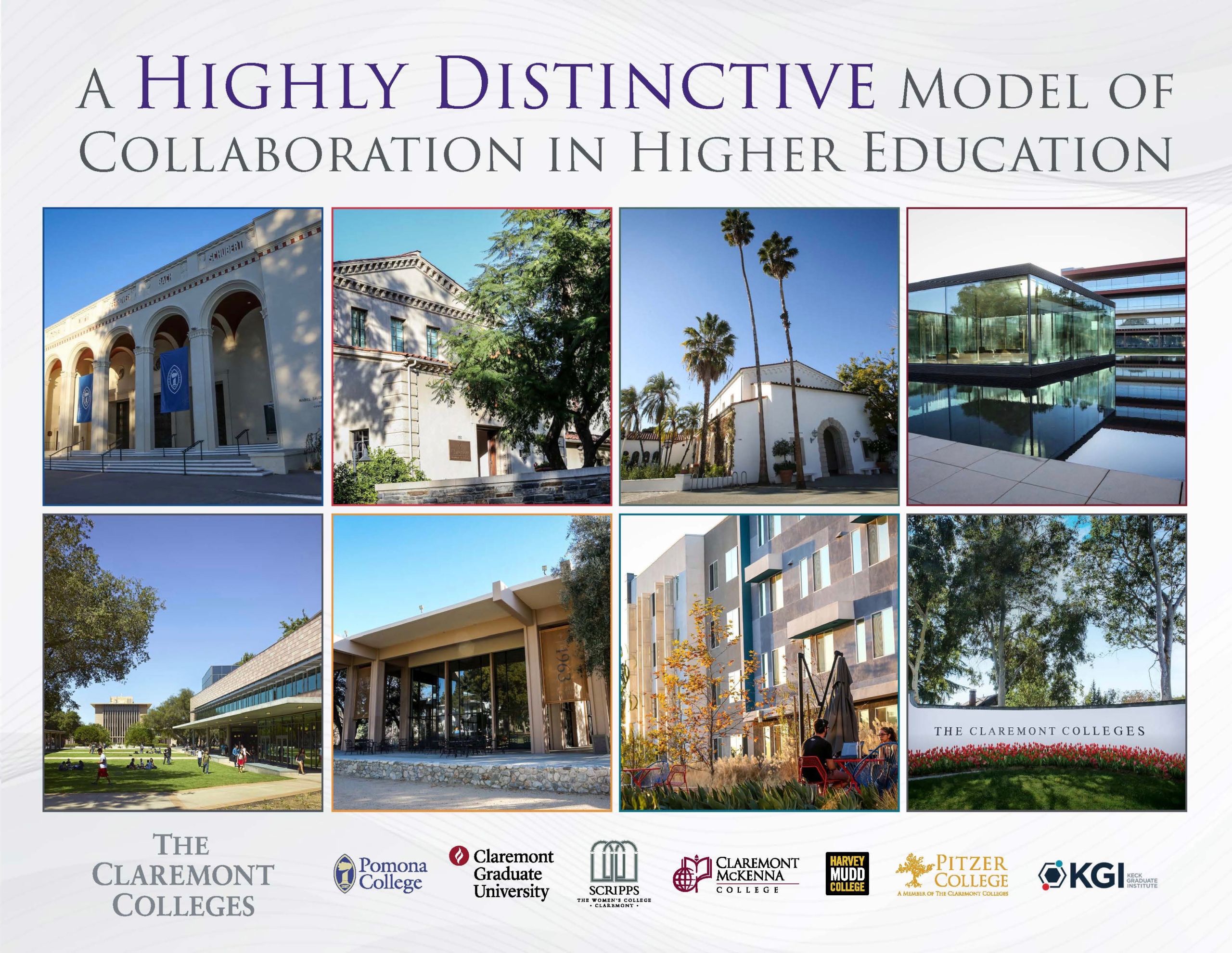
The Claremont Colleges includes five undergraduate liberal arts colleges and two graduate institutions: Pomona College, Claremont Graduate University, Scripps College, Claremont McKenna College, Harvey Mudd College, Pitzer College and Keck Graduate Institute. Located on contiguous campuses in the Southern California city of Claremont, each institution has its own student body, faculty, governance, curricular emphasis, culture, and mission. Intercollegiate cooperation provides university-scale services and facilities. See The Claremont Colleges Map for more information. With 8,500 students and 3,200 faculty and staff, located on more than 540 acres of land, The Claremont Colleges benefit from the diverse missions, character and culture, as well as the integration of academic and extracurricular programs that make up this truly unique consortium.
See The Claremont Colleges Brochure for more information.
Who We Are

The Claremont Colleges Services Departments

Executive Office
Provides leadership to TCCS with close coordination with the presidents of TCC.

Communications & Community Relations
TCCS and consortial communications coordination as well as facilitation of community relations.
Administration
Auxiliary services, Communications, Workday, and Real Estate & Housing operations of TCC.

Campus Safety
Provides protection to persons and property of students, faculty, staff and visitors of TCC.

Finance
Directs all financial and human resource aspects of TCCS and select operations of TCC.

Information Technology Services
Provides mission critical information technology services within TCCS and in support of select programs and projects of TCC.

Library
Provides library services and research to the students and faculty of TCC.

Student Services
Promotes and enhances the physical health and wellness of all students at TCC.

Human Resources
Coordinates comprehensive HR benefits for TCCS

Benefits Administration
Administers employee benefit plans throughout TCC.

Payroll Administration
Providing payroll administration services for The Claremont Colleges.

Financial Services
Provides accounting and related services to TCCS and TCC institutions.

Budget and Analytics
Maintains financial data for decision-making at TCCS and amongst the Intercollegiate Committees.

Workday Support Services
Providing Workday Support Services for The Claremont Colleges.

Central Facilities Services
Provides maintenance and services for TCC property.

Auxiliary Services
A diverse group of services includes Campus Mail, Connection, Huntley Bookstore, and the Executive Conference Center.
Environmental Health and Safety
Provides professional health and safety services throughout TCC ensuring the safety of faculty, staff and students.

Real Estate and Housing
Assisting in the real property needs of students, staff and faculty of TCC both on and off campus.
Risk Management
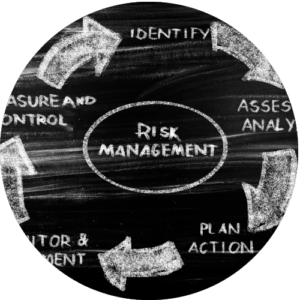
Raising awareness and protecting resources by promoting risk-averse policies and practices.